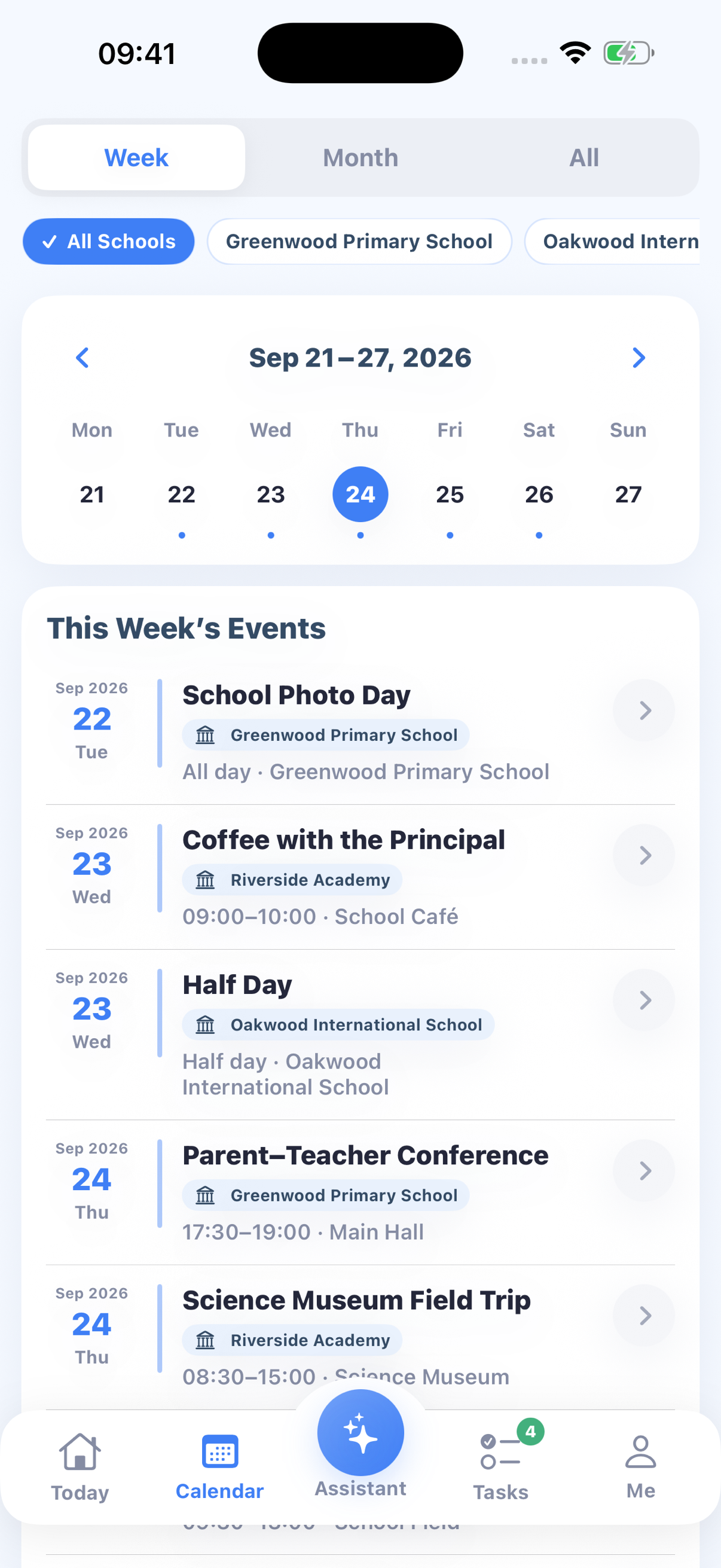

How to import a school calendar and add reminders
When school sends a PDF, photo or ICS calendar, import it first, then add reminders to events that need your attention. Review the calendar rather than typing every activity again.
Keep the file school sent
Save the school calendar to Files or Photos. todayCue accepts ICS, PDFs and calendar photos. It does not provide a preinstalled school calendar or school-name list.
Choose calendar import in Assistant
Open Assistant, select calendar import, enter the school name and select your file. Associate it with the correct child.
Review the dates before saving
Check each title, start and end date, all-day or timed setting, school and child. Correct unclear or inaccurate suggestions before confirming.
Use the calendar bell for a reminder
Find an event in Calendar and tap its bell to add an ordinary reminder. The control turns blue when active. Tap again to remove the reminder while keeping the calendar event.
Correct an import when needed
Clear an incorrect import by school, then import again. Clearing uses no AI scan. Other schools and reminders already added to Tasks remain in place.